| Home | Job | Pinball | Photo Album | Automotive | Press/Awards | Contact |

Home Control System III
The integrated system is controlled by a central controller running a custom application written in C/C++. It unifies the network of hardware distributed throughout the home to provide the inhabitants with an integrated system that appears to perform intelligent actions automatically. This describes the third generation home control program (set up in 2003). For a write-up of the previous version, see here.
A bit of history
In 1991, I purchased a PCjr
for $40 and wrote a Borland DOS C++ application to communicate with a TW523
(X-10's powerline interface). This allowed me to send and
receive
power line commands to control and monitor the house. After a while, I
outgrew that configuration and found a third party parallel interface
port,
and constructed a DTMF decoder and IR interface. I could now
receive
touch tone commands from the phone, and send IR commands to my
Audio/Video
system. I built a niche into the wall of my kitchen, and
housed
the
system in there for a built-in look.
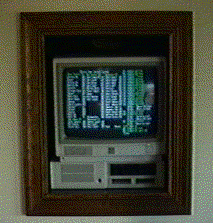
The first PCjr-based home control system. Installed in 1991.
The status of the units are in the left part of the screen, and events
are shown on the right.
More on the Jr here.
I could view the Jr's screen on any TV in the house, and it would do somewhat intelligent actions such as mute the Audio/Video system when a call came in. As the years went by, I had to replace the floppy drive, as the Jr has no hard disk. This made me realize that I had to upgrade to a conventional PC, or I would one day be dead in the water with the old hardware. I had also wanted to add more I/O, and thought that a network of PIC microprocessors would give me all the expansion room that I would need. The network of PIC idea came from an existing home control system called HCS.
In 1996, I purchased a 200 MHz Pentium computer, and rewrote the user interface with Borland's TurboVision GUI libraries. The RS485 network allowed me to add many more features such as a weather node, complete phone interface, a power monitor node, etc. It still ran as a 16-bit DOS application under Windows 95 (and later '98). Since '95 was not very stable, I left open the option of booting up in DOS only, and run in a dedicated mode if I needed more than a few weeks of reliable operation.
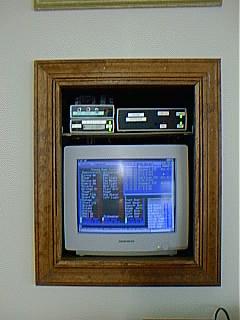
The second generation system using a Pentium computer.
The home control program was augmented with a GUI interface.
See here for more, and here
for a screenshot. Note the PIC modules on top of the
monitor, they are connected by the RS485 network.
Upgrade for the future
In January 2003, the
Pentium died,
and I had to run out and get another
PC at Best Buy. This time it came preloaded with Windows XP,
and
it would not run the 16-bit DOS based application properly (I was
getting
tons of RS485 network errors and time-outs). I was able to
boot
up
the new PC with my old hard disk running Windows 98, and continue
operation
basically the same as before, but I knew I had to move with the times,
and upgrade the home control program to a 'real' Windows application.
I started to write the new home control system, called G3 (Generation III), in March 2003. This time, I used the Borland Builder C++ environment, a compiler I have used successfully for other projects at work. It allows you to build a Windows GUI application using the Visual based concept, and it has been very dependable for me. Although I did not intend to, the new program is a complete rewrite, using only a few dozens lines of code from the old system. Before G3, parts of the code that ran on the Pentium was from the original source that came with the TW523 more than ten years ago (!). Since the DOS application ran in a continuous loop, it loaded down the PC very much, and other tasks such as web browsing were always very slow. Time delays were implemented with CPU-eating delay loops. In the Windows way of programming, one uses events to fire actions, and when the home control program is not doing anything, it frees Windows to do other tasks. Timers fire at 1msec interval to perform the background polling of the PIC network. As a result, Windows indicates that the CPU is used less than 2% of the time when running only G3. This means web browsing is now smooth, and I can even play a video with the DSL connection without disruption of the home control program or the video.
The new G3 program was put into service only two months after I started to write it. Several new features made the one-day trail run successful, and I had only some minor tweaks before it was left permanently running. One significant feature is 'monitor mode'. This causes the home control computer to not control the RS485 bus that it is attached to, but listen and decode all the messages. In this manner, the new program could gather all the sensor readings and update the user interface and perform as usual, except the original home control program is running the home. This greatly avoided downtime of the system, a nice feature as we have grown accustomed to its benefits.
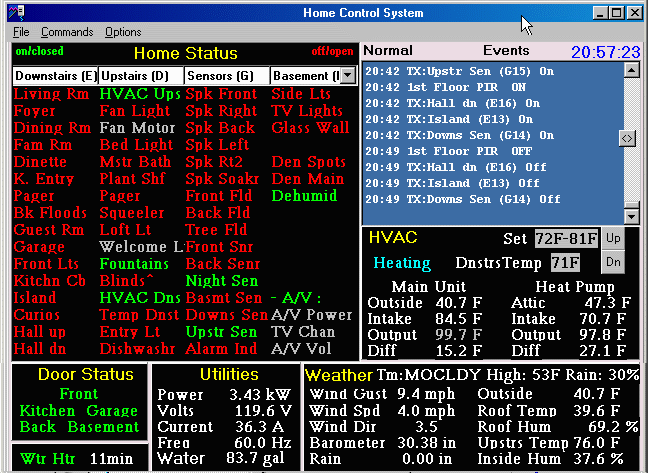
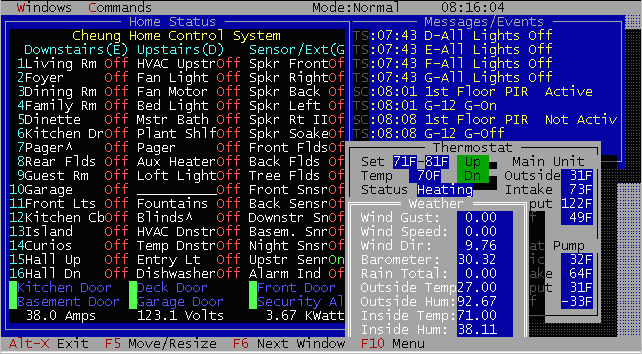
Main screen of the new home control program called G3.
Although
only four house codes are visible
at one time, the state of any unit can be determined by changing a
selection on the GUI.
Note the forecast for today is shown. It shows a mostly
cloudy
prospect, with
a high of 53F.
Feature List
Here are some of the features of the system. The new ones are noted.- Monitor mode (new). As described above, this causes G3 to monitor the RS485 network and process all messages and sensor readings into its internal database for display on the GUI. This allows more than one computer on the network to run G3. They would all display the same readings, and take the same actions based on events, however only the active G3 program would control the network. This was very useful during the development of the GUI, allowing little downtime during the switch over.

Monitor mode (here shown as 'passive') causes G3 to process network
traffic on the RS485 line, but it does not generate any. An update has added an
'auto' feature to the irrigation control depending on the rain gauge.
- Connect to serial ports other than COM1: and COM2: (new). The old G2 program accessed the UART registers directly, which limited the type of serial ports it could use. On the other hand, G3 uses a Windows compliant library. As a result, it can now use any serial port, even virtual serial ports such as those for USB-serial converters, serial port redirectors, and serial ports on PCI cards.
- Connect via TCP/IP (new). Normally, the RS485 network is connected to the serial port on the Home Control PC via the first PIC on the network via its RS232 to RS485 converter. However, this new feature causes the program to seek for the network on the TCP/IP (Ethernet network) at a specific port. With an appropriate serial to TCP/IP converter, the first PIC does not need to be located near the PC, but could in principle be anywhere in the world.
- TCP/IP Gateway (new). G3 also acts as a gateway between a particular TCP/IP port and the RS485 network. This allows another instance of G3 (running on another computer on the network) to control the RS485 network of PICs. The computer running the gateway function then drops down to monitor mode, and continues to update its database to display sensor readings and home control events. This feature, combined with the previous one (Connect via TCP/IP) made it easy for me to test subsequent version of G3. I could run the new copy from the comfort of my home office, and it would connect to the running version in the kitchen.

The user can select from a wide range of options in order to connect to the RS485 network,
including if it is made available on the TCP/IP network.
- Downloading of weather forecasts from the internet (new). Text formatted forecasts are downloaded from the web, and parsed for display on the main screen in a abbreviated form and the full contents is available in a separate dialog box.
- In the 'Weather' box of the main G3 screen above, we are expected 50% probability of percentage (POP) and a high of 72F.
- This information is used to determine if the automatic blinds are to be opened in the morning. If the expected high is over 80F, the eight blinds in the family room are not opened at dawn.
- After 3pm, the line in the main screen changes to tomorrow's forecast.
- The contents of this dialog box is also sent to the event log as part of the weather summary in e-mail reports (see below).

The forecast dialog box. Weatherforecasts for the next 7 days are downloaded and displayed in textual form.
POP means 'Probability Of Percentage'.
- The names of X-10 units are not hardcoded (new). The names of the 256 possible X-10 units are not hardcoded, but can be edited and saved to disk. This makes it easier to configure the system without recompiling. In the previous generation of home control program this information was hardcoded.

All X-10 unit names can now be edited at run-time. Compare to screen shot of the
main screen above. Units not marked as 'Light' do not show dim/bright on
the Home Status window.
- E-mail reports (new). With better Windows integration and access to Winsock, G3 can send e-mail reports at a preset time. These reports consist of the contents of the event window, and a summary of the day's weather and power usage.
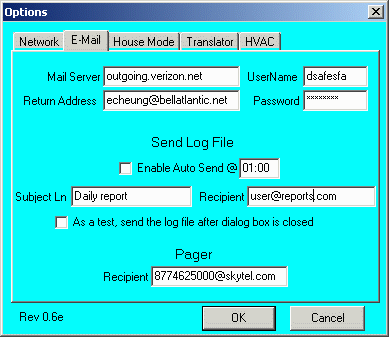
The user can customize the Internet options such as e-mail and pager settings.
Some of the settings here are fictitious.
- Sending messages to my text pager (new). The system can be triggered to send me a text page when important events occur. Such as someone arriving home, or the tripping of the alarm sensor. In the latter case, the zone that caused the alarm trip will show up on the text pager.
- Better display of events (new). In G2, the user would see for example E-2 ON (with a time stamp) when that X-10 command was received. With the new system, the user will see Foyer Light (E2) ON (with time stamp). This leads to better readability of the event window. In addition, if a user is controlling the system by phone (more below), the event string will be spoken out loud into the phone line, and the user can better follow along what is occurring.
- Adoption of the concept of a generalized house and unit code (new). Commands and events are attached to the concept of generalized house and unit code. House codes A through P are mapped directly to the corresponding X-10 commands, other events such as from the security system are mapped to the 'S' house code. For example, S14-ON means that the security system has been armed. W1-ON means that the sun has set. This latter quantity is from a calculation based on the home's longitude and latititude. This is provided only as a backup to an X-10 Sundowner module which uses a sensor to detect sunrise and sunset so that automatic actions can occur if it gets dark. The benefit of this feature will be made clear with the next item below.
- User interface for the 'Translator' function. The Translator function maps an event from a generalized house code into another based on certain conditions, and simulates the actions of an intelligent home. For example, when the alarm is armed, I can use a Translator rule to shutdown all the lights in the home, or to turn on a light when it is dark and motion is detected. A collection of more than 70 of these rules help make the home appear to anticipate your needs. This very powerful module used to be hardcoded, but with the use of Borland Builder has been changed to a run-time user interaction using the dialog box below. Almost any event that occurs can thus trigger another based on the Translator rules, which leads to a more tightly integrated system. X-10 commands can trigger IR commands, weather activity can trigger X-10 commands, events by the security system (doors, PIR sensors, etc) can trigger the HVAC system, etc.
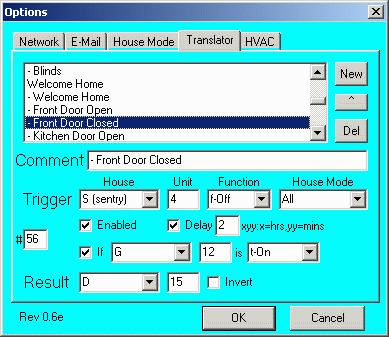
Example of a Translator rule. If the front door is closed (S4-OFF) and it is at
night (G12-ON), send an OFF command to the entry way light (D15) after a delay of 2 minutes. On the event window, the exchange will be documented by the contents of the Comment box. This very complex structure allows great flexibility in defining Translator rules. If the user needs help, each edit box will pop up a hint if the user pauses the mouse cursor over it.
- The 'Custom' rules module. For rules too complex to describe within the structure of the Translator rules, they are implemented by hardcoding in C++. Although inflexible unless the user recompiles the system, it brings to bear all the resources of C++ when firing complex logical actions. About 12 rules are implemented by hardcoding.
- One example of such a complex rule is pathway lighting. If a user gets up late at night and walks around the home, lights will turn on depending on which PIR sensor is tripped. However, I only want this to occur if it is dark. If lights are already on, I do not want the home automation system interfering with the lighting setup.
- Another is irrigation control. If an irrigation valve starts up unintentionally, G3 will need to shut it down. However, the logic to detect this is too complex for a translator rule.
- Control of HVAC system. From the user interface the user can control setpoints, change the mode (Heat/Cool/Fan) and ON/OFF status of the HVAC system as shown in the main G3 window above. When the security system is armed, the HVAC system is setback accordingly. This feature extends to phone control. A user can control the HVAC system when calling in.
- Display of nine temperature sensors distributed around the home (see main screen above) gathered by the thermostat node. They are:
- Roof temperature. Temperature inside the weather station on the roof.
- Attic temperuture. Sensor inside the attic near the air handler for the heat pump.
- Heat pump exhaust temperature. Temperature of the air exiting the heat pump air handler.
- Heat pump intake temperature. Combined with the above sensor, allows determination of the performance of the heat pump.
- Upstairs temperature. Temperature inside the weather display station on the second floor.
- Downstairs temperature. Temperature at the main HVAC thermostat.
- Furnace exhaust temperature. Temperature at the air exhaust port of the main furnace/air conditioner unit.
- Furnace intake temperature. Combined with the above, allows determination of the performance of the main HVAC system.
- Outside temperuture. Temperature outside in the shade of the heat pump compressor unit.
- Display of the power line parameters such as Voltage, Current, Actual Power, and line frequency. From this other parameters such as the power factor and imaginary (reactive) power can be calculated.
- Display of the important doors around the home. These are the Garage, Kitchen, Front, Basement and Deck door. The status of window sensors, glass break sensors and other sensors are not shown, but change of state will show up on the event window.
- Display of the weather node gathered data such as wind speed, etc.
- Ability to send any X-10 command by clicking on the unit name on the 'Home Status' window. A pop-up menu allows the user to select the command.
- Control of the security system, such as Arming and Disarming commands, and security levels (away, home, perimeter, etc).
- Almost all of the data gathered by G3 can be charted (augmented from G2). See below for more information.
- 'Mapper' function that converts commands received from 'A' housecode to commands for the entire house. Using the unit codes A-1 through A-8, a user can control all of the units in the 'Home Status' window on the G3 screen. Two unit code commands within 15 seconds are needed to affect this action. The first code signifies which group of eight, and the second the individual unit within the group. The groups are arranged by column of the display, making it easy to determine the two unit command based on a visualization of the 'Home Status' screen. For example, to turn on the front irrigation valve, the user sends A-1, A-5, A-ON. This allows control of the entire home via a mini-controller, phone interface, IR wrist watch, etc.
- Phone interface (augmented from G2). The phone node is connected to one extension of the phone system, if a user connects to it (either from outside the home or inside), it will answer and speak the words 'Ready' once the password has been given. The user can then hit a button to send a command to the 'A' house code (thereby controlling any of the units via the 'mapper' function), or to request for the help string. While the user is on the phone, the phone node will also speak out loud any new events printed to the event window, so that he can verify commands sent (such as 'dishwasher ON', or 'HVAC set forward').
- Incoming calls cause a large yellow dialog box to pop up for 30 seconds with the caller's name and number. Due to the open design of the home, it can be seen from a wide range of areas, allowing quick identification of a caller, should he/she get past the auto-attendant in the phone system.
- Coupled with VNC this entire interface is available anywhere on the web with nothing more than a web browser.
Charts of gathered data
The last set of features
to be
completed are the charting
functions.
Before I go into this section, I just want to mention that I like
looking
at charts and graphs. I do a lot of it at work, and
discovering
trends
and relationships in the data is something I find fun. This
charting
feature existed to a limited extent in the G2 version, but I have
decided
to chart all the analog data that G3 gathers (using the 'TeeChart'
component
from Borland Builder C++). Examples are ambient temperatures
and
power line status. This screenful can be switched to if the
user
selects that function. The horizontal axis of the chart is
the
time
during which the sample was taken. The chart autoscales the
vertical
axis depending on the max and min values of all the graphs
shown.
A user can select either the left or right vertical axis for a data
series
by clicking on a series of checkboxes on the left. If the
user
needs
help on what a particular check box does, he/she can pause the mouse
over
it, and a hint will pop-up with the name of the corresponding
graph.
Alternately, by clicking on the 'Legend' button, a legend will appear
next
to each pair of checkboxes along with the color of the graph for the
most
complete assistance.
For the user's convenience, a series of preset configurations have been hardcoded, and can be cycled through to quickly show commonly needed graphs. Alternately, the user can just click on the appropriate checkbox to enable a graph.
For the user's convenience, a series of preset configurations have been hardcoded, and can be cycled through to quickly show commonly needed graphs. Alternately, the user can just click on the appropriate checkbox to enable a graph.
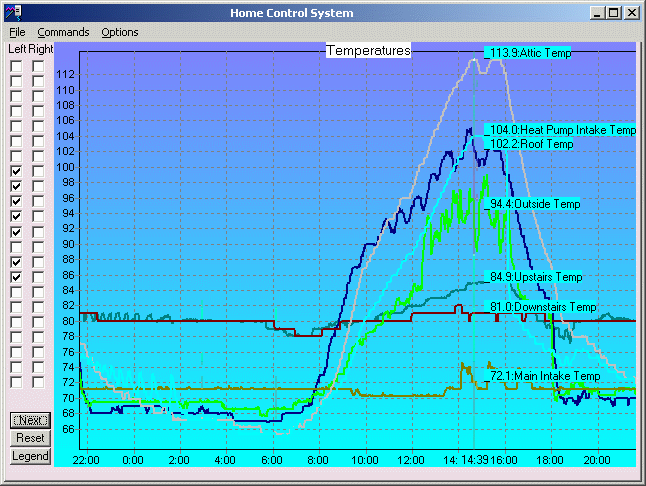
Example of a set of charts showing temperatures around the
home.
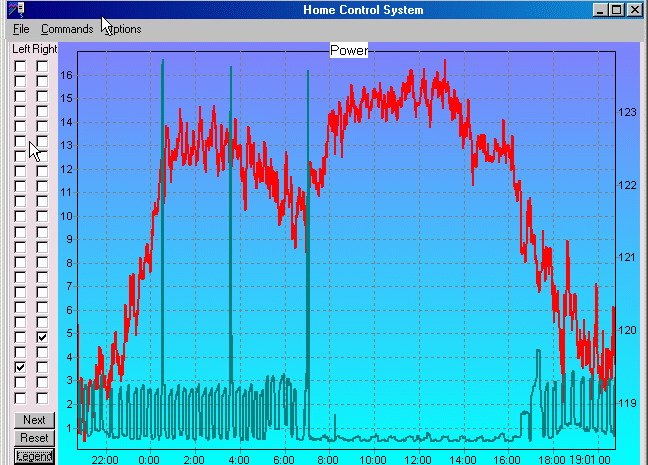
Here is another chart.
In the example chart
above, certain
temperatures around the home are
charted. As the user moves the mouse over the chart, a faint
vertical
line snaps to its position. Where it intersects with data,
the
value
and name are displayed along with the time on the horizontal
axis.
In this example, at 2:39 pm, the temperature in the attic was 113.9 F,
while the outside temperature was 94.4 F, etc. The checkboxes
on
the left turn a particular chart on and off, i.e. if the left box is
clicked,
the graph's axis will be the left one.
One can make some observations on these graphs:
- On the left hand side starting about 10pm (22:00), the upstairs temperature (dark green) cycles as the heat pump turns on and off to cool the bedrooms. One can see that cycling reflected in the heat pump intake temperature (light blue). On another graph this cycling is confirmed by seeing the temperature drop throught the heat pump and power draw. This cycling stops at around 2 am when there is enough cooling due to heat loss to the outside air.
- After the sun rise causes rapid heating starting at 8 am, the attic (grey) heats up, exceeding the temperature on the weather station on the roof (dark green roof temp) at around 10:30 am. The attic continues to heat up throughout the day, reaching a peak temperature at the vertical line.
- Since the heat pump/AC is turned off for the bedrooms during the day, the upstairs temperature starts to rise also (dark green) at around 10 am. At around 4 pm, the upstairs air-conditioning is enabled by G3, and cooling starts (light blue Heat Pump Intake falls rapidly). It takes only about 1 hour before the set point is reached.
- At around 2 pm, the Downstairs temp (dark maroon) experiences a uptick in temperature, and triggers the main unit downstairs to start running. One can see the Main Intake Temp (brown) rise as warm air rushes through the system. This drops as the unit runs, and cools off the main floor. When the temperature drops below the hysterisis of the thermostat, the unit shuts off (small blip down in the Downstairs temperature).
All these temperature
change events
have their corresponding change in
the power use of the home, which can be seen on another preset
configuration.
The user can also turn that trace on by clicking on its corresponding
check
box. Combined with a trace that shows temperature rise or
fall
through
the heating/cooling unit, one can tell how well they are working, or if
service is needed (by comparing the delta T vs power usage).
Long term update
- 5/31/03. Charting functions complete. Software placed in continuous use.
- 7/31/03. Added municipal water meter.